
Power Query simplifies data standardization by using reference tables to validate and transform data automatically. Whether you’re managing a multilingual product catalog, validating translations against a glossary, or standardizing terminology across datasets, Power Query can merge, compare, and replace values in a repeatable and refreshable process. This approach helps organizations maintain a single source of truth while minimizing manual corrections and improving overall data quality.
In order to illustrate the data standardization and validation, we will consider a data table that holds the primary data, and one more table ,i.e, the reference table that holds the standard values which is used to validate, supplement or dictate the approved terms in the primary data.
Loading Data to Power Query
| Part ID | Part Name (English) | Part Name (Japanese) | Quantity |
| PCB001 | Printed Circuit Board | 基板 | 1 |
| PCB002 | Resistor | レジスター | 2 |
| PCB003 | Capacitor | コンデンサ | 3 |
| PCB004 | Diode | ダイオード | 4 |
| PCB005 | Transistor | トランジスター | 5 |
As a first step, the above data in Excel is converted to a table using the keyboard shortcut Ctrl + T. Another way to create a table is by navigating to the Insert tab and clicking on the Table option. The next step would be to load data into Power Query to enhance the data quality. Click any cell inside your table, go to the Data tab on the ribbon, and select From Table/Range and your PQ screen will open. Click the Close and Load to option from the ribbon dropdown menu. Since you do not want to duplicate the data into a brand-new worksheet but instead want to save it as a background link, in the Import Data dialog box that pops up, select the Only Create Connection radio button and click OK.
Similarly, perform the above operation of loading the two tables below onto Power Query. The table below is the Reference Table used to validate the primary table data.
| Part Name (English) | Verified Japanese Name |
| Printed Circuit Board | プリント基板 |
| Resistor | 抵抗器 |
| Capacitor | コンデンサー |
| Diode | ダイオード |
| LED | 発光ダイオード |
| Transistor | トランジスタ |
The reference table below is the add-on table that is used to supplement data onto the primary table.
| Part ID | Supplier Name |
| PCB001 | Nippon Electronics Co. |
| PCB002 | Sakura Components Ltd. |
| PCB003 | Fuji Industrial Supplies |
| PCB004 | Tokyo Semiconductor Co. |
| PCB005 | Osaka Precision Parts |
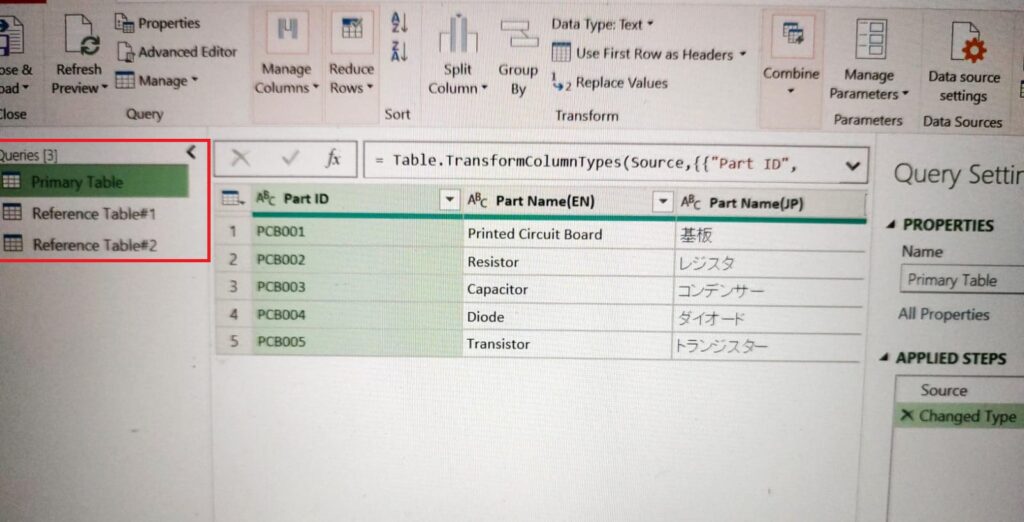
Once all the three tables are loaded onto Power Query, it will appear as follows.
Merge Supplement data to Primary Table
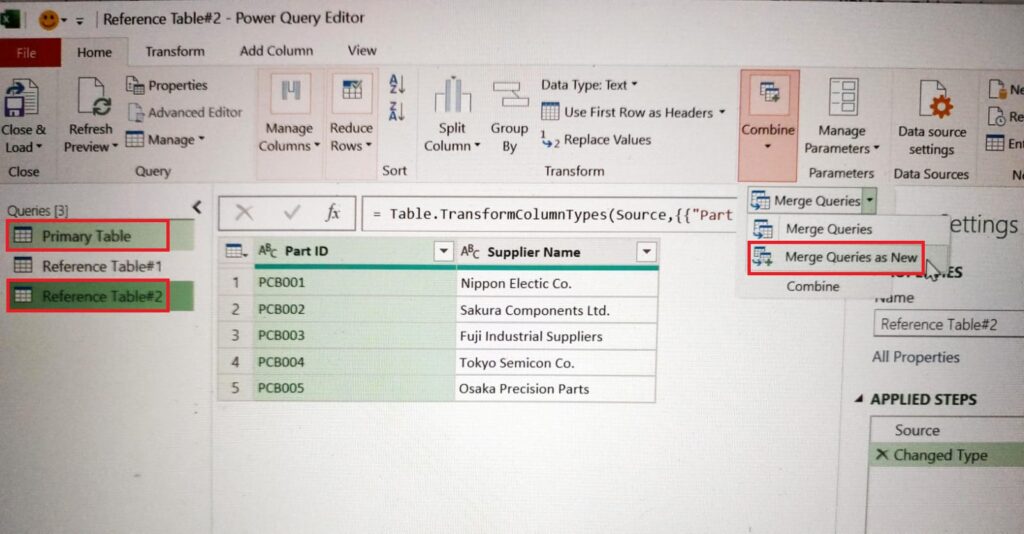
There will be situations wherein you need to merge a separate table into the primary table. This scenario is illustrated here with the Reference Table#2 above. As you can see in the below PQ screen, the Primary Table and Reference Table#2 are selected and the Merge Queries as New option is selected by clicking on the Combine option in the ribbon.
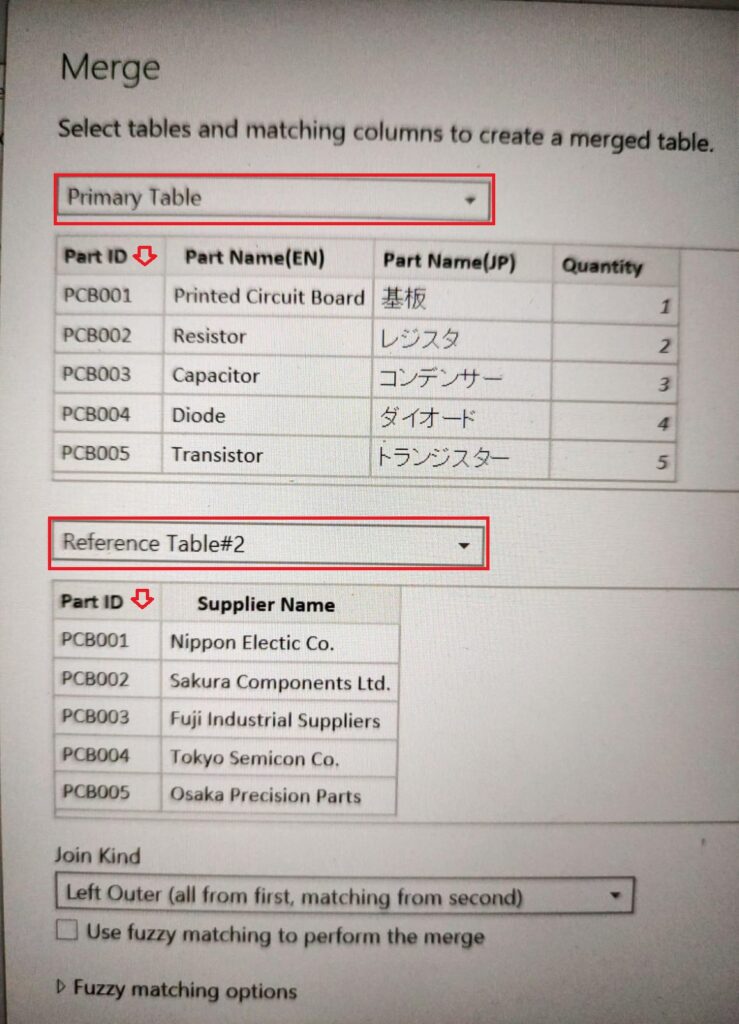
The pop-up window below opens and the Primary Table, Reference Table#2 needs to be selected from the dropdown option in the upper and lower sections. Select the Part ID columns in both the tables and verify whether Left Outer Join is selected under the Join Kind. The Left Outer Join keeps all rows from the Primary table and brings in only the matching rows from the Reference table#2. In case of no matching rows, null will be added.
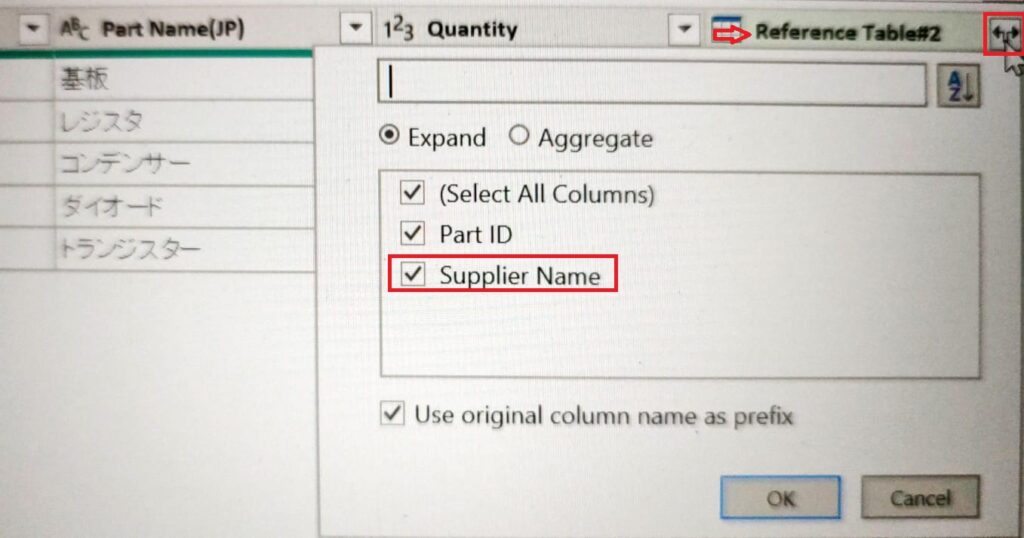
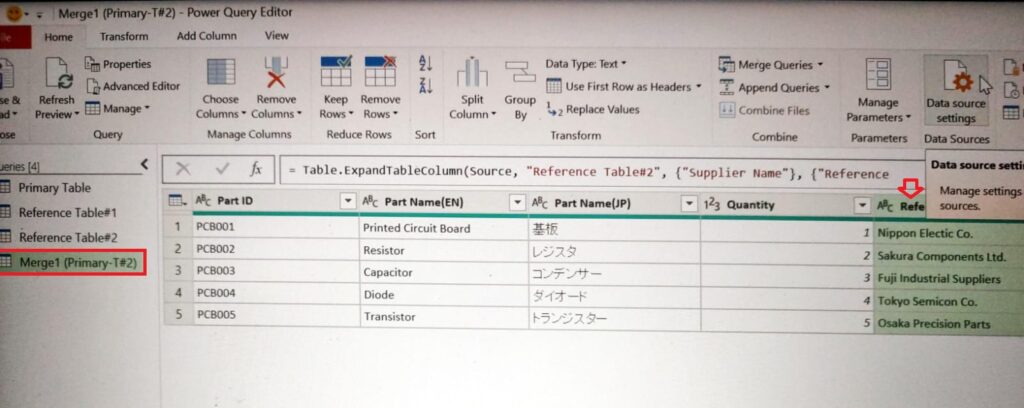
Once OK button is pressed in the previous screen, you will see a merged table with the new column on the right side as shown below. At the top of the new column, you can see an expand icon appear. Click on that button and uncheck the Part ID so that you have only the Supplier Name to be added to the Primary table data.
The final table will appear as follows, with the supplement data being added to the Primary Table data.
Dictate the Approved Items in the Primary Table
As part of this functionality, you will use the Reference Table#1 as a glossary to validate the data in the Primary Table. In this scenario, you will be using the merged table in the previous section as the Primary table. Select the merged Primary Table in the upper section and the Reference Table#1 in the lower section, followed by the selection of the key Part Name column in both tables. The Join Kind needs to be set to Left Outer as shown below.
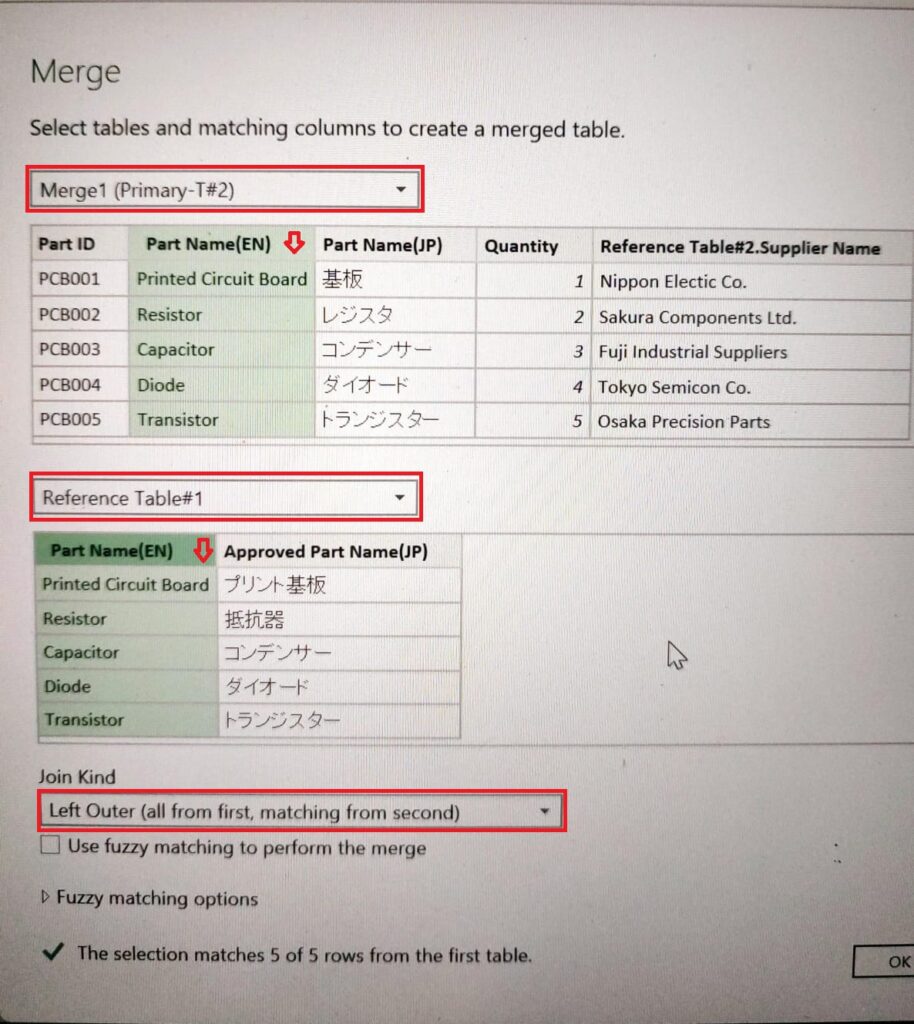
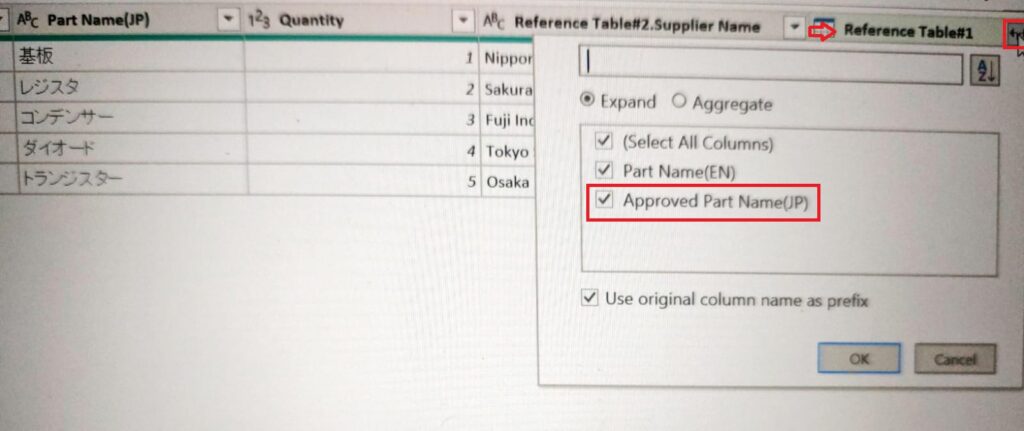
On clicking OK, both the tables will be merged into a new table as shown below. In the new table, you can see the new column with an expand icon at the top right. Click on the button and select the Approved Part Name(JP) column so that the approved glossary terms are displayed as the new column. You can visually check with the earlier column for inconsistencies. Delete the old column and rename this newly added column to Part Name(JP).
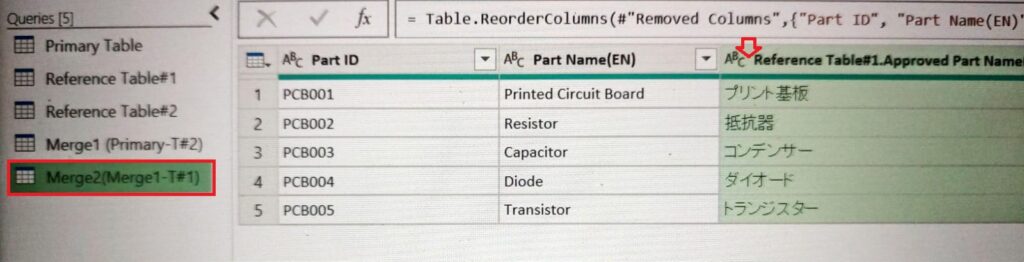
Below, you can find the old column deleted and the new column with approved Part Name. This can be loaded back into excel sheet.
When you combine two tables in Power Query, the result is not static. The combined query remains connected to the original source tables. If new rows are added to either the Primary or Reference table, or existing values are changed in either of the tables, the merged output table reflects the updated values automatically after refresh.
Further Reading:


Leave a Reply