
Data doesn’t always come in a clean, structured, and normalized format that is ready for analysis. Often, raw data is organized in ways that make it difficult to use directly in pivot tables, filtering, reporting, or data modeling. Sometimes, information is spread across multiple columns when it would be more useful in rows. At other times, data is arranged vertically when a row-based layout would make more sense. By using Transpose, Pivot, and Unpivot, we can transform messy or complex datasets into well-structured formats, making data analysis, reporting, and visualization simpler, more efficient, and easier to understand. The good news is that all three transformations can be performed easily using Power Query in both Microsoft Excel and Power BI.
We will go through all three powerful Power Query transformations one by one as follows.
Transpose
In case of transpose, we convert rows to columns and columns to rows and change the orientation of data. As an example, we will consider the table below whose data will be transposed.
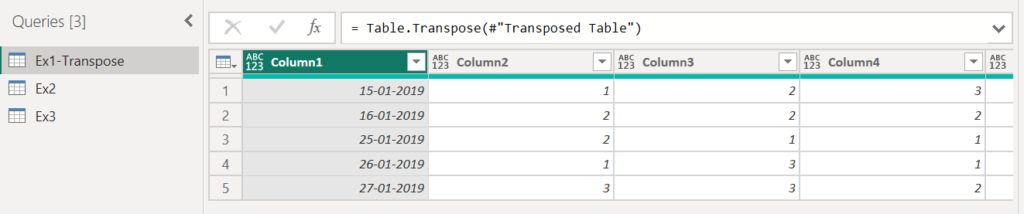
Select the first column, navigate to Transform tab and click on the Transpose option to transpose the table data. The resulting table is as shown below.

Unpivot
Unpivoting data means converting columns into rows, making it easier to analyze or visualize in certain scenarios.

To illustrate the unpivot functionality, let us consider the following original table, which will be converted to the table shown at the last part of this section ,i.e, The Final Table. In this table we will have the date in the first column, forecast duration in the next column followed by the forecast count in the last column.

The first step is to perform a transpose of the above table. The resulting table will appear as follows.
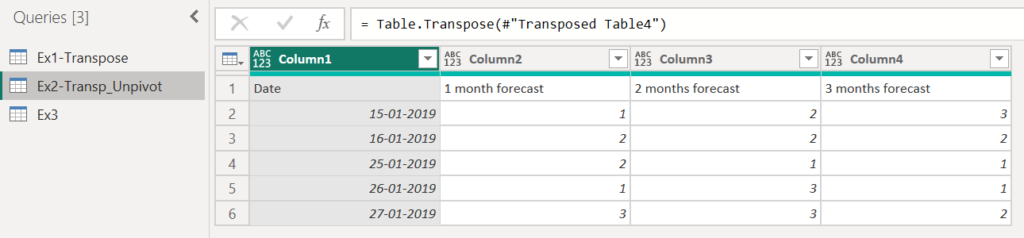
Use the option “Use First Row as Headers” to upgrade the first row to header.
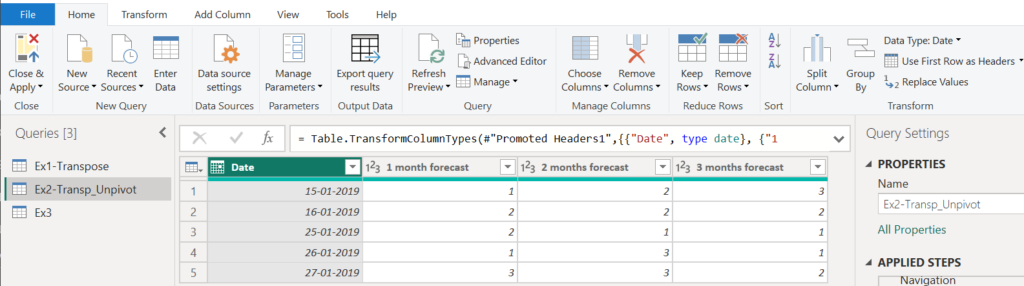
The next step would be to select the first column, navigate to Transform > Unpivot Columns > Unpivot Other Columns. This results in the above table data being converted into the table data in the format below. The point to be noted here is that the Date column in not altered.
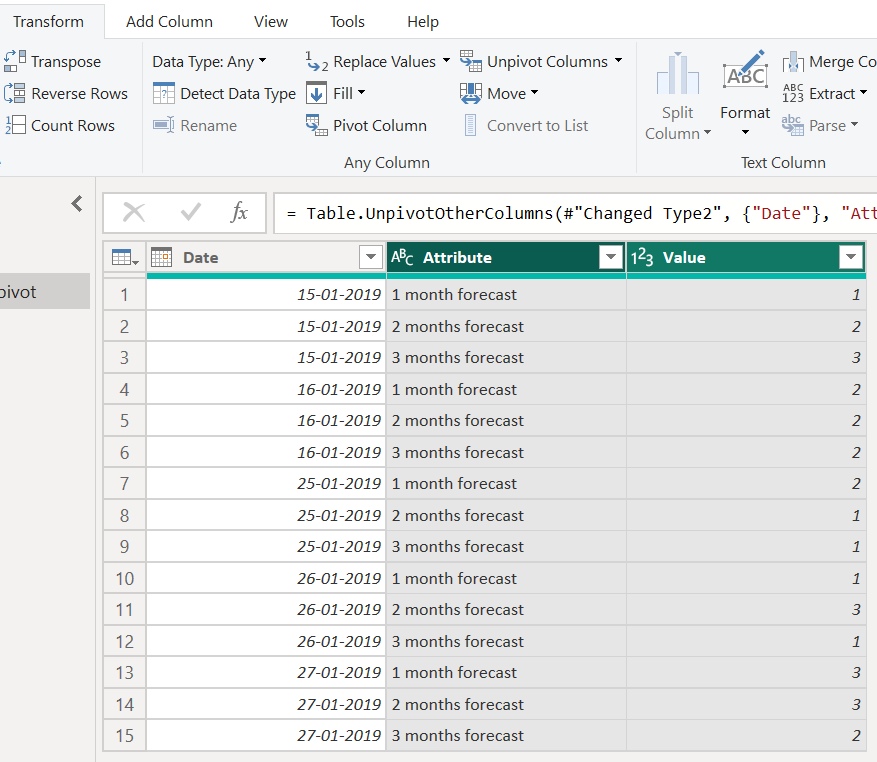
The above table data needs to be formatted to remove the forecast entry in each of the rows and the column headers need to be renamed properly. These actions are being performed as shown in the figure below.
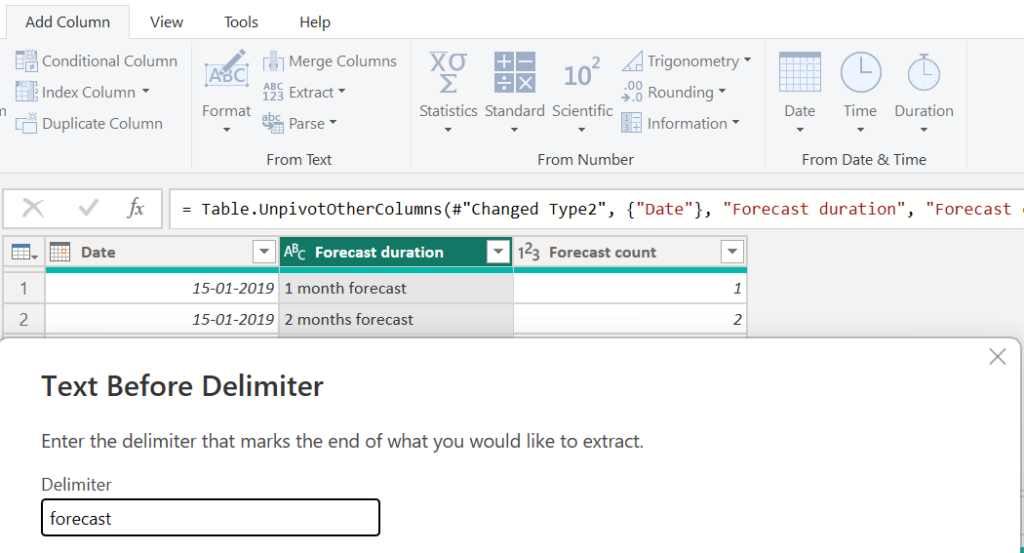
Edit the M language formula to add the Forecast duration and Forecast count headings. This will change the column names accordingly.
Navigate to Transform > Extract and click on Text After Delimiter and the above pop-up appears. Enter the delimiter “forecast” and click on the Ok button.
The final table data will appear as follows.
| Date | Forecast duration | Forecast count |
| 15-01-2019 | 1 month | 1 |
| 15-01-2019 | 2 months | 2 |
| 15-01-2019 | 3 months | 3 |
Pivot Table
In pivot tables, unique row items from a specific column will be used to create individual column headers. Unlike transpose, which only changes the orientation of rows and columns, here it also summarises and aggregates data.

Think of pivoting as answering three questions:
- Pivot column: Which column’s values should become new column headings?
- Values column: What numbers or data should fill the new columns?
- Row identifier: What should distinguish one output row from another?

Perform the same steps as in the earlier Unpivot section till the Unpivot other columns step. This should be followed by the Split by Space delimiter step as shown below.
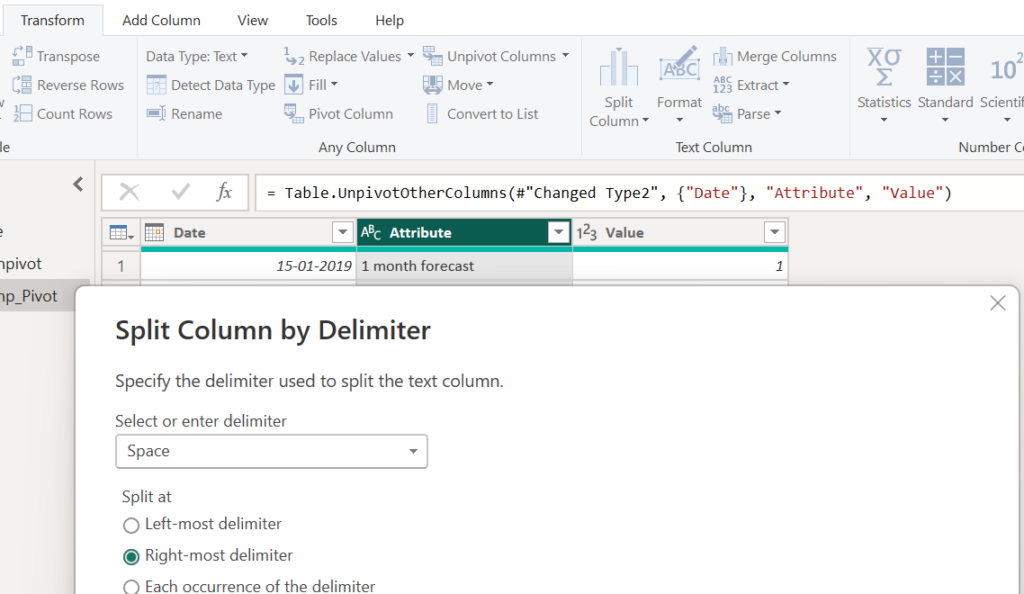
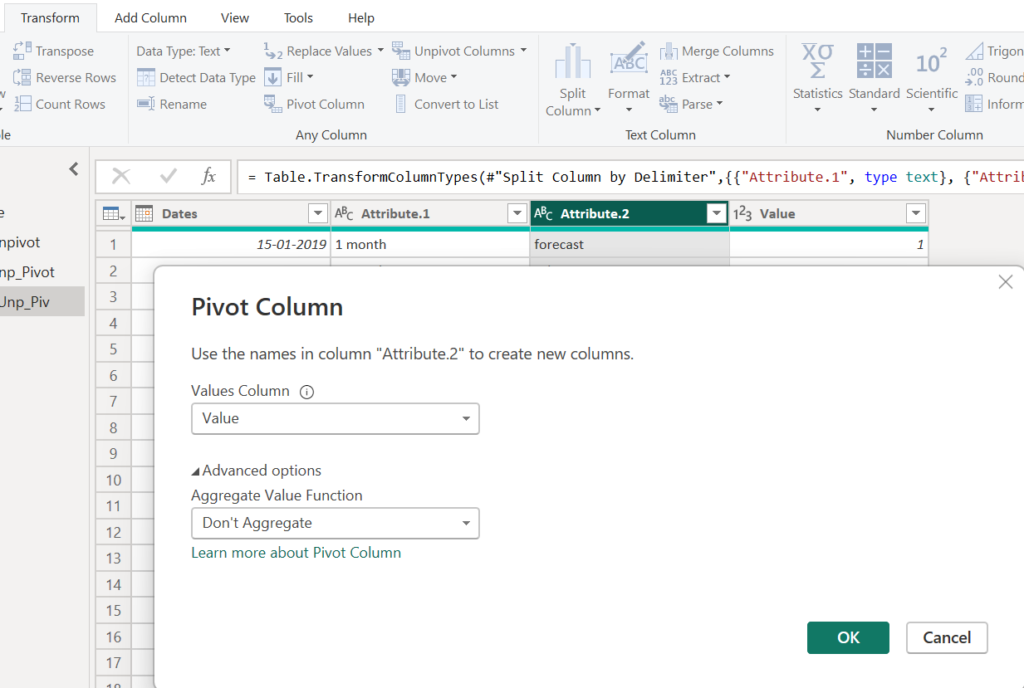
The resulting table will appear as follows, with the “forecast” attribute value split into a separate column. Navigate to Transform tab and click on the Pivot Column option. In the resulting pop-up, set the Values Column and Aggregate Value Function to the necessary values so that no aggregation is performed.
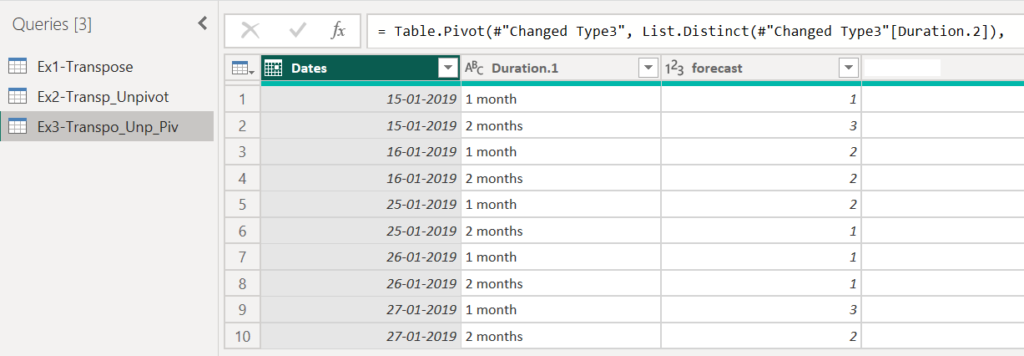
The final table will appear as follows.
Further Reading :


Leave a Reply